Connect Langdock to Exchange Server with Postgate AI
Langdock is a European AI platform that connects remote MCP servers as native integrations. Your workspace assistants can then work with your mailbox, and each person uses their own Exchange permissions.
- A Langdock account in a workspace
- Permission to create integrations (admins only in many workspaces)
- Your personal MCP address from the portal dashboard
Step by step
- 1
Copy your MCP address from the dashboard
Sign in to the Postgate AI portal. On the dashboard, under "Connect your AI assistant", you’ll find your personal MCP address (format: https://postgate-ai.com/mcp/your-company) with a copy button.
- 2
Open Integrations
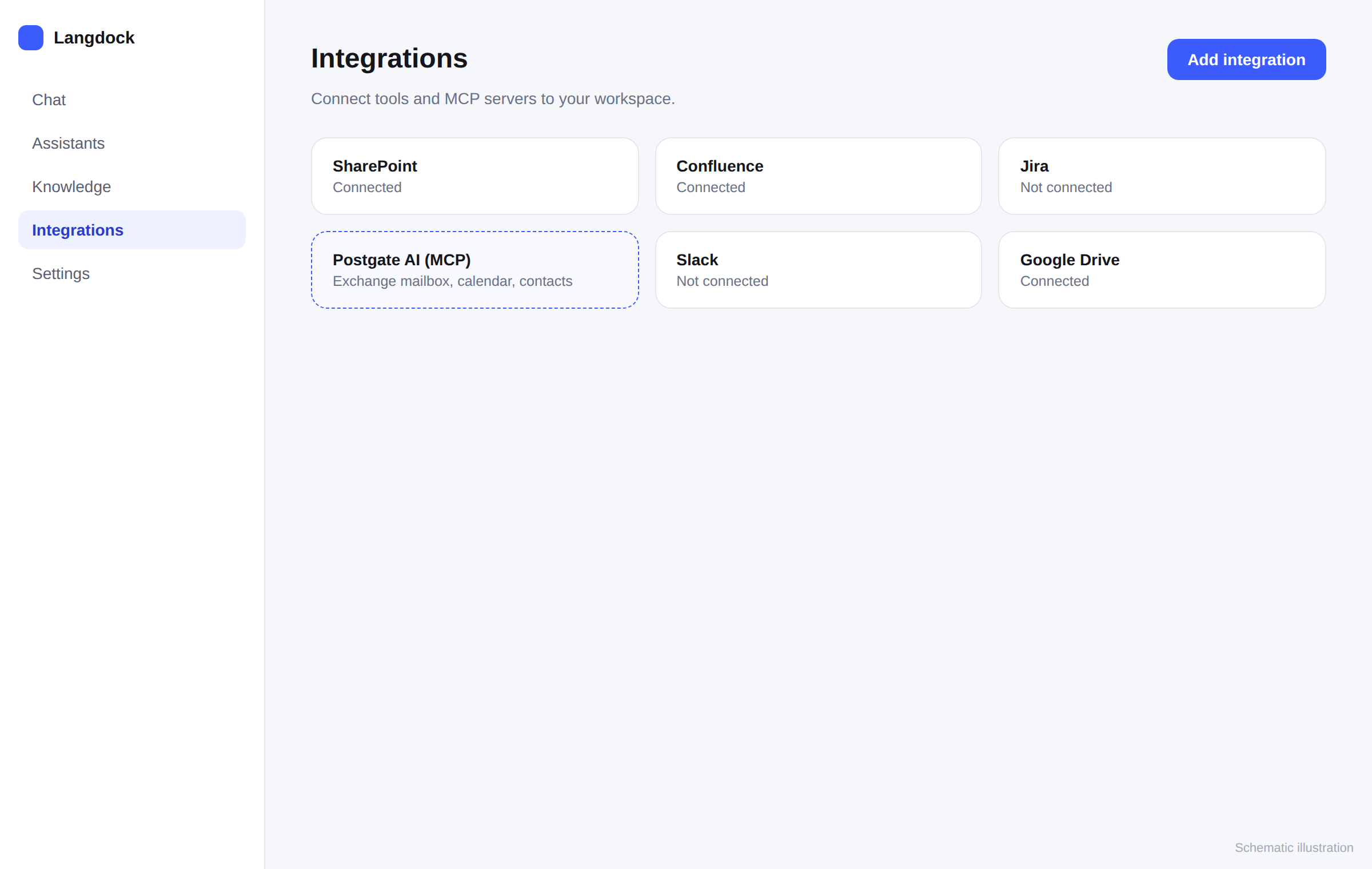
In Langdock, open "Integrations" from the main navigation and click "Add integration" in the top right.
Simplified illustration, not an actual screenshot. - 3
Connect the remote MCP server
Choose "Start from scratch" and then "Connect remote MCP". Paste the copied address as the Server URL, pick "OAuth 2.0 (Dynamic Client Registration)" as the authentication method, and click "Create and connect".
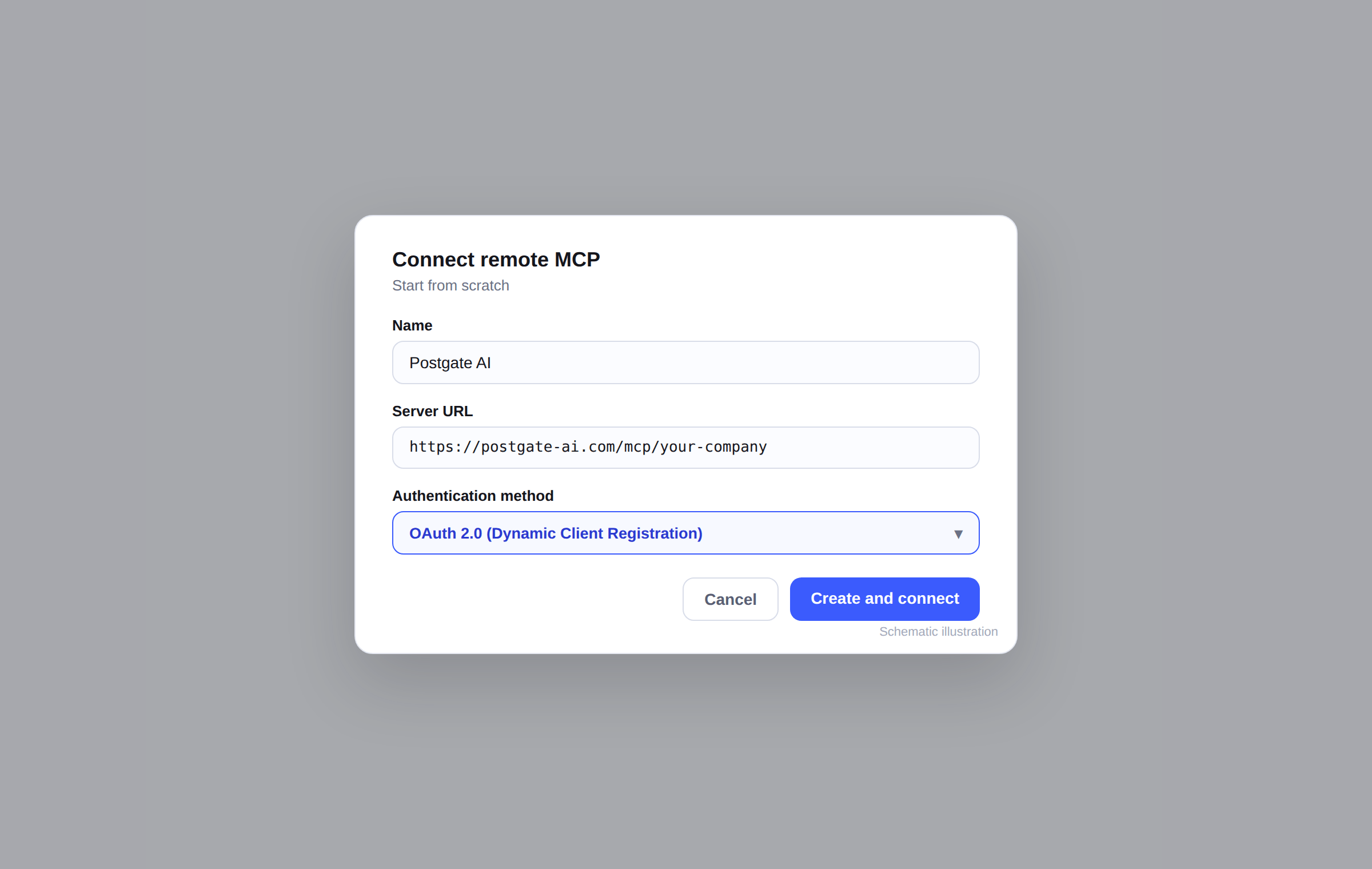
Simplified illustration, not an actual screenshot. No token, no client ID: Langdock registers itself with the server. That’s why you pick Dynamic Client Registration and not the manual OAuth option.
- 4
Sign in via OAuth
Langdock redirects you to the Postgate AI sign-in page. Use your portal account (email and password, or Microsoft) and approve access.
- 5
Select the tools
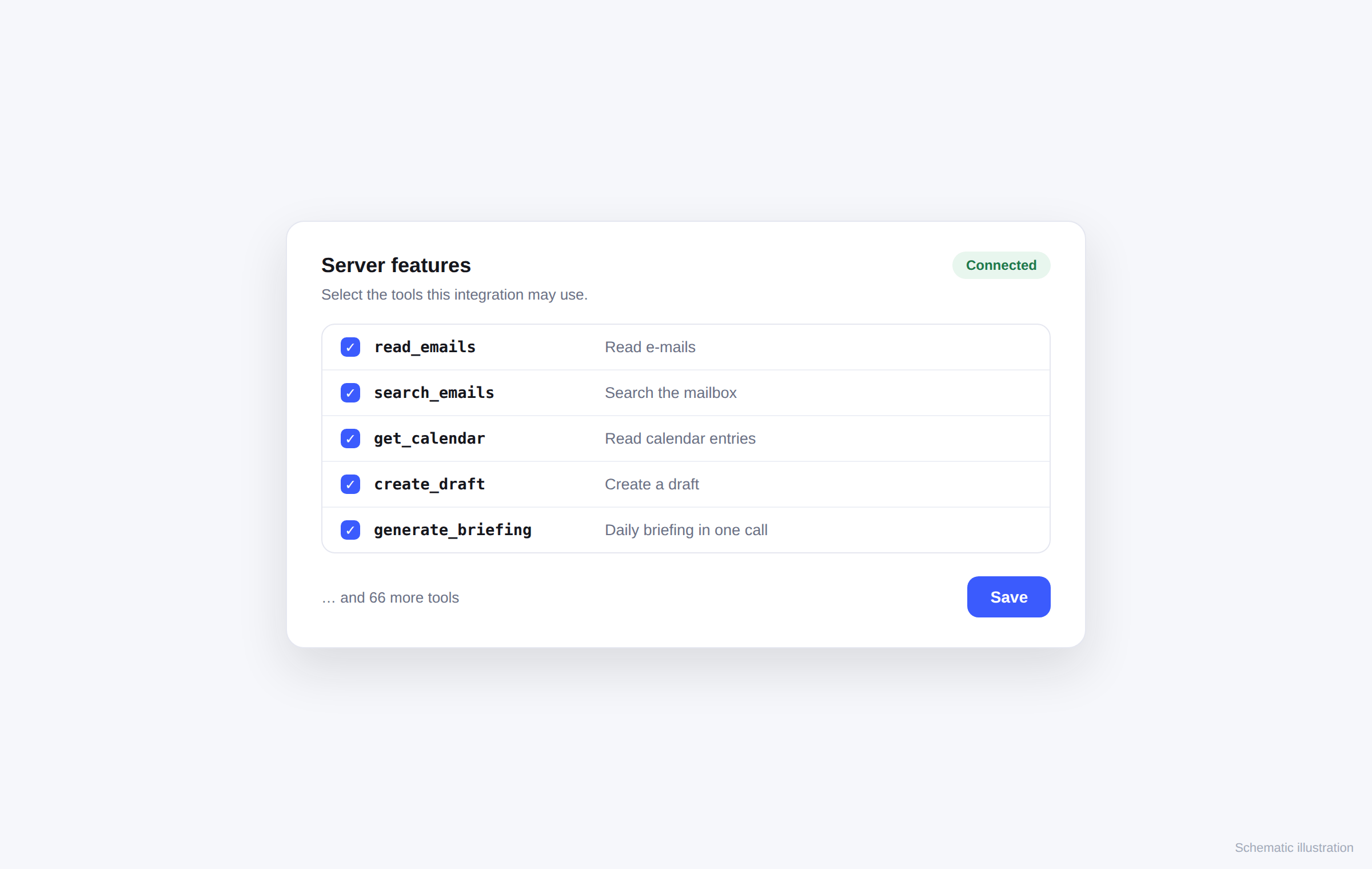
Back in Langdock, click "List Server Features". The list shows the tools the server offers. Select the ones the integration can use and click "Save".
Simplified illustration, not an actual screenshot. - 6
Use it in chat
The integration is now available in chat and in your assistants. Ask, for example: "Which of today's emails need a reply?" or "Give me my morning briefing."
If something goes wrong
"Add integration" is missing
Your workspace role doesn’t allow it. An admin creates the integration once, and then everyone signs in individually.
Connection fails
Copy the MCP address from the dashboard exactly as shown (https, no trailing space) and check that your trial hasn’t expired.
No tools in the list
The list only appears after sign-in. Finish the OAuth step first, then click "List Server Features".
Frequently asked questions
- Does Langdock need an API key?
- No. The server uses OAuth 2.0 with Dynamic Client Registration. Langdock registers itself, and you just paste the address.
- Can everyone in the workspace see my mailbox?
- No. The integration is created once, but every person signs in individually. Every action runs with that person's own Exchange permissions. Other mailboxes stay hidden.
- Is Postgate AI listed in the Langdock MCP directory?
- The listing has been submitted. Until it appears, add the server as a custom MCP integration as described above. It works the same way.