Connect Perplexity to Exchange Server with Postgate AI
Perplexity supports custom remote MCP connectors directly on the web. Perplexity then searches your mailbox as easily as it searches the web, with your own Exchange permissions.
- Perplexity Pro or Enterprise
- Enterprise: an admin must allow custom connectors for members
- Your personal MCP address from the portal dashboard
Step by step
- 1
Copy your MCP address from the dashboard
Sign in to the Postgate AI portal. On the dashboard, under "Connect your AI assistant", you’ll find your personal MCP address (format: https://postgate-ai.com/mcp/your-company) with a copy button.
- 2
Open the Connectors settings
On perplexity.ai, click your account in the bottom left, open "Settings", and choose the "Connectors" section. Click "+ Custom connector" in the top right.
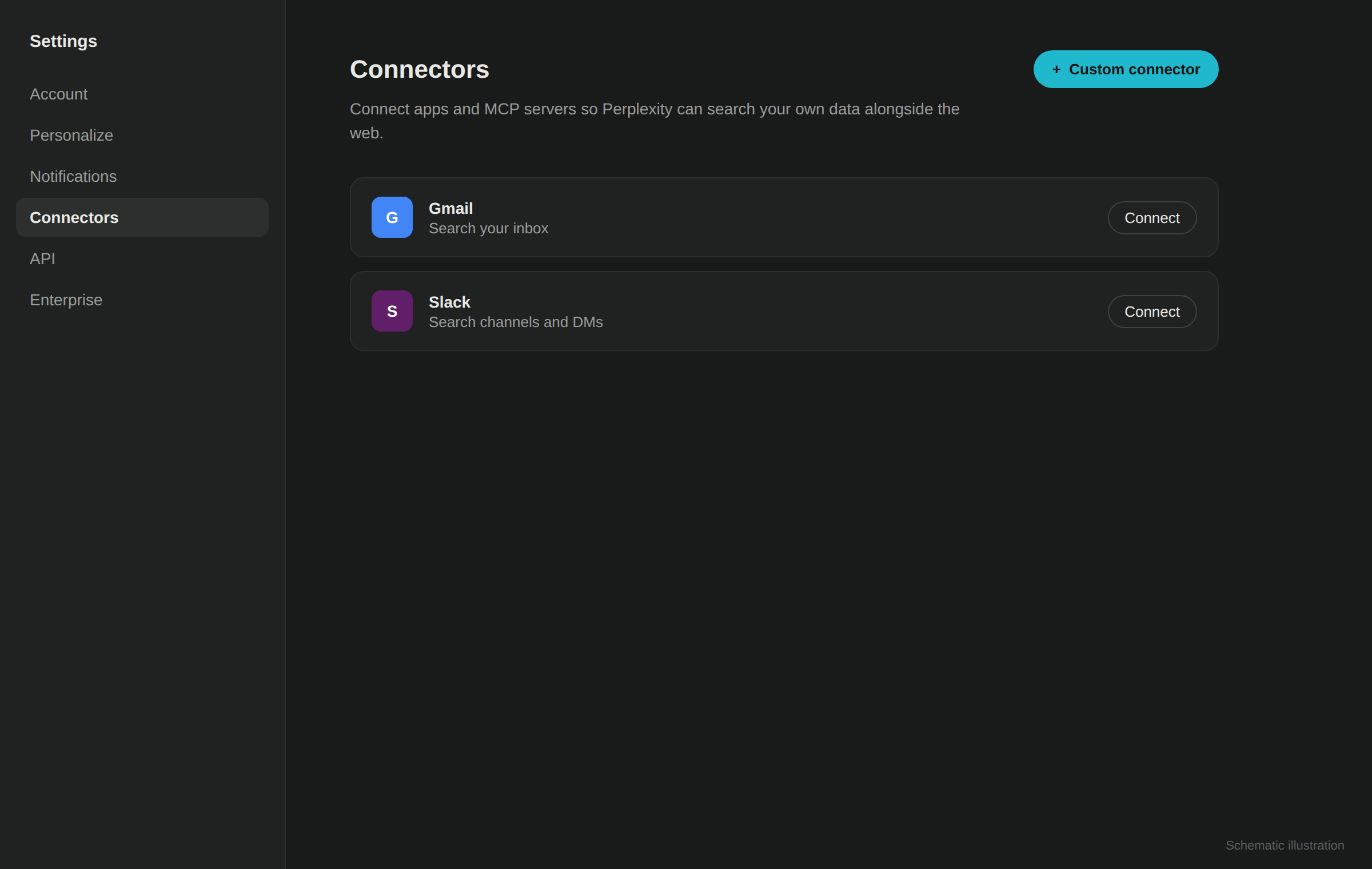
Simplified illustration, not an actual screenshot. - 3
Create the remote connector
In the dialog, choose the "Remote" tab. Enter a name (e.g., "Postgate AI") and paste your MCP address as the server URL (must start with https). Leave the advanced settings empty. Click "Add" to save.
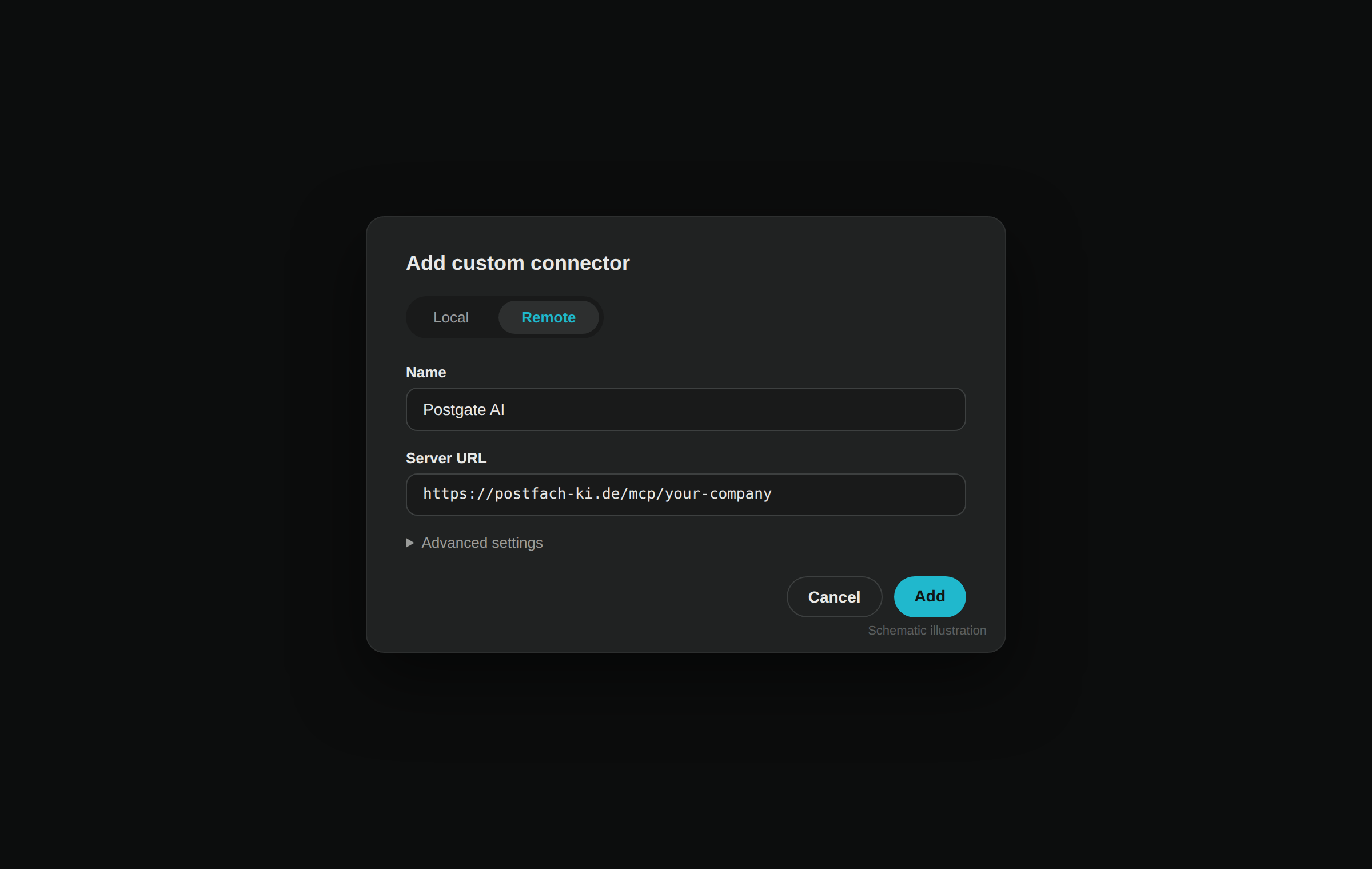
Simplified illustration, not an actual screenshot. - 4
Connect and sign in
Click the new connector card. Perplexity redirects you to the Postgate AI sign-in page. Use your portal account (email and password, or Microsoft) and approve access.
- 5
Enable it as a source in a thread
In a new search, turn on the connector as a source. Perplexity then combines web research with what’s in your mailbox whenever you ask, for example: "Which of today’s emails need a reply?"
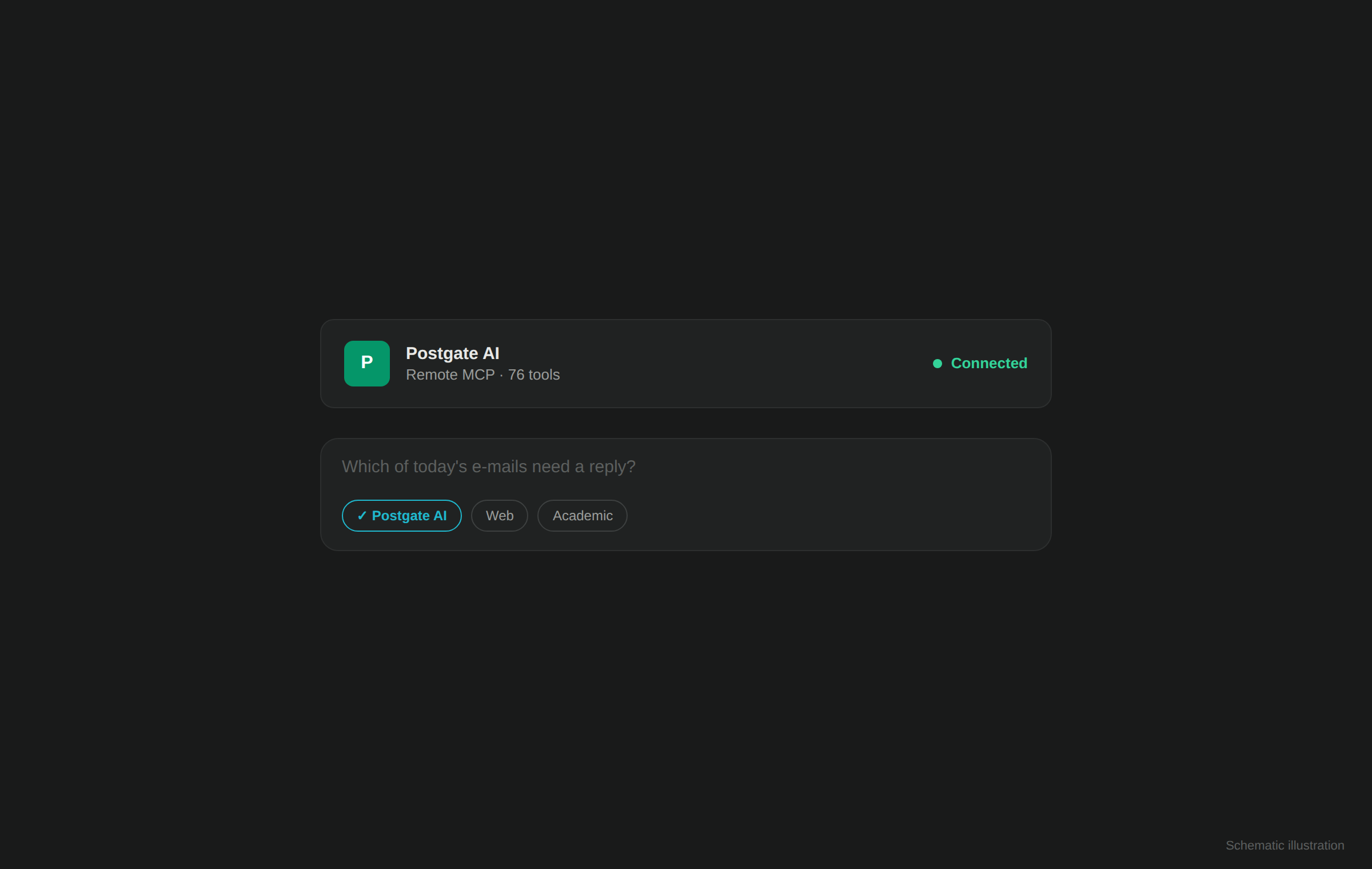
Simplified illustration, not an actual screenshot.
If something goes wrong
Perplexity only answers from the web
Make sure the connector is turned on as a source in the current thread, and ask explicitly about your mailbox ("in my emails …").
"+ Custom connector" is missing
Custom connectors are available starting with Perplexity Pro. In Enterprise organizations, an admin must also turn on "Allow members to add custom connectors".
Connection fails
Copy the MCP address from the dashboard exactly as shown (https, no trailing space) and check that your trial hasn’t expired.
Frequently asked questions
- Do I need the Mac app?
- No. Postgate AI is a remote MCP server and works directly on perplexity.ai in the browser. The Mac app is only needed for local MCP servers.
- Which plan do I need?
- Custom connectors are available on Perplexity Pro and Enterprise, not on the free plan.
- Can Perplexity see my mailbox all the time?
- No. Perplexity only accesses your mailbox when you ask a question, and strictly with your own Exchange permissions.