Connect Claude to Exchange Server with Postgate AI
Claude by Anthropic supports custom MCP connectors directly on claude.ai in the browser, in the desktop app, and on mobile. Setup takes about two minutes.
- Claude Free, Pro, or Max
- Team/Enterprise: an owner adds the connector
- Your personal MCP address from the portal dashboard
Step by step
- 1
Copy your MCP address from the dashboard
Sign in to the Postgate AI portal. On the dashboard, under "Connect your AI assistant", you’ll find your personal MCP address (format: https://postgate-ai.com/mcp/your-company) with a copy button.
- 2
Open the Connectors settings
On claude.ai, click your name in the bottom left, then "Settings", and choose "Connectors" from the menu.
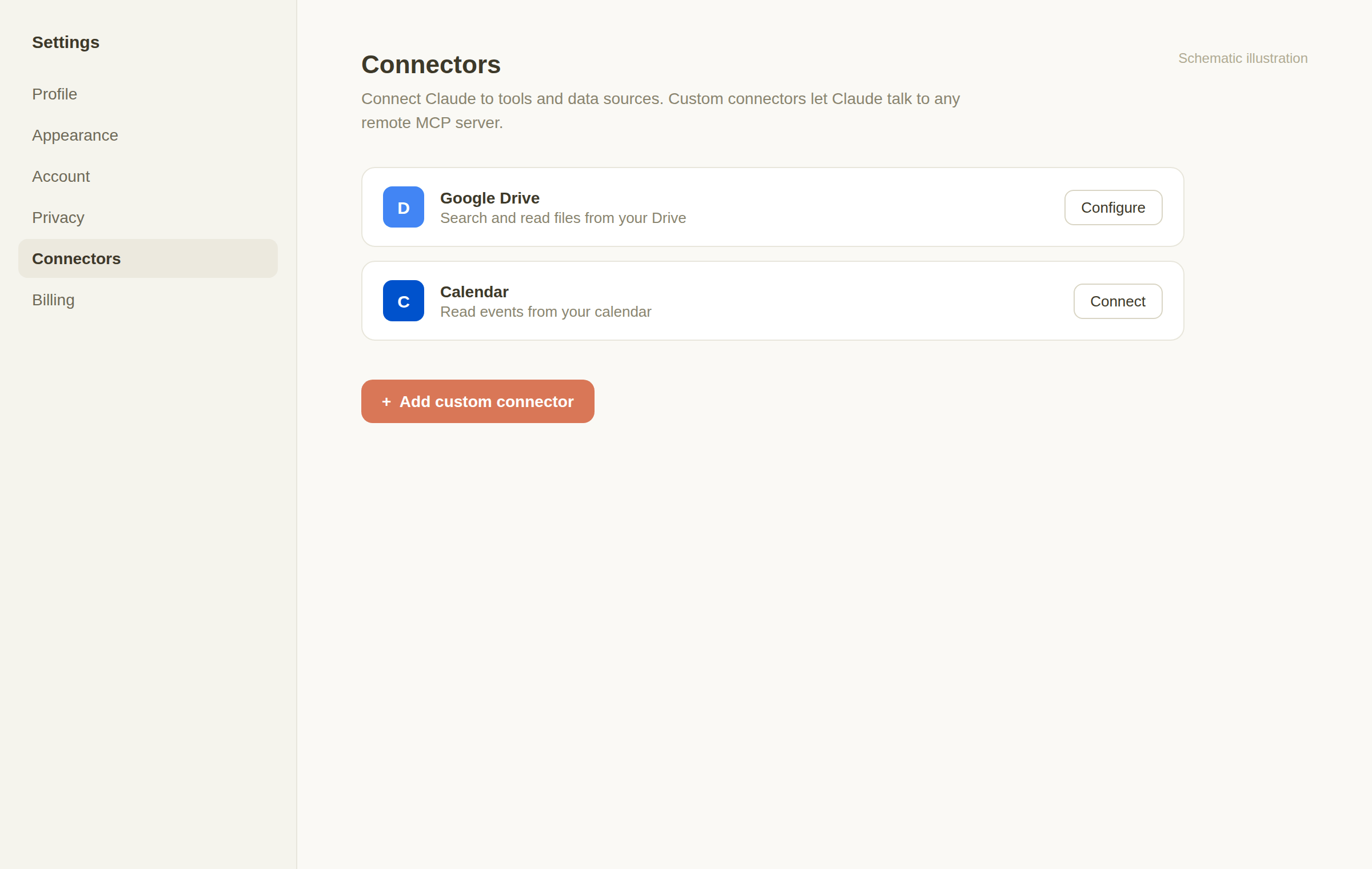
Simplified illustration, not an actual screenshot. - 3
Fill in "Add custom connector"
Click "Add custom connector". Enter a name such as "Postgate AI" and paste your MCP address as the remote MCP server URL. Leave the advanced settings (OAuth client ID/secret) empty, since Postgate AI uses dynamic client registration. Click "Add" to confirm.
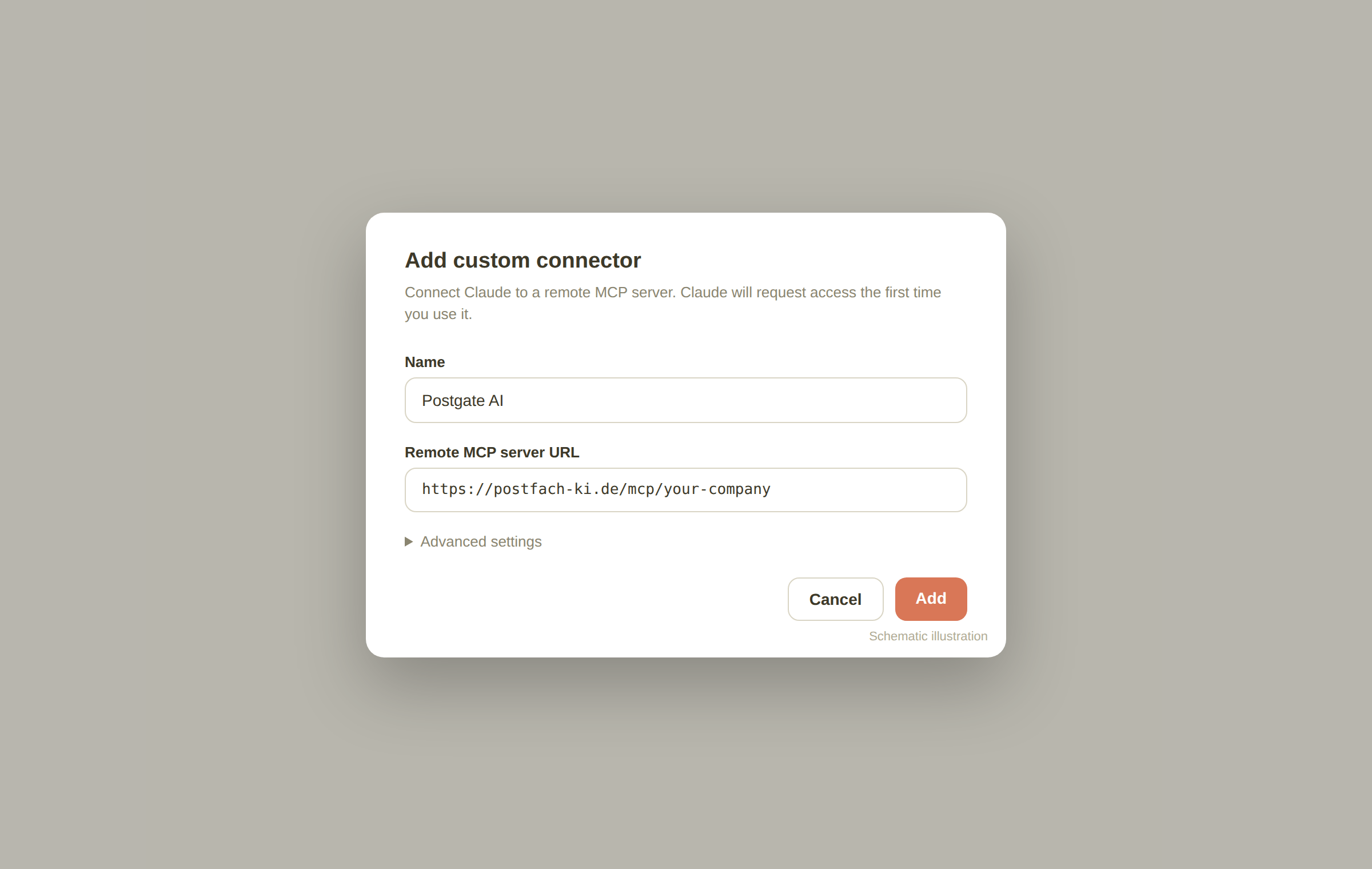
Simplified illustration, not an actual screenshot. - 4
Connect and sign in
Click "Connect" on the new connector. Claude redirects you to the Postgate AI sign-in page. Sign in with your portal account (email and password, or Microsoft), then approve access once.
- 5
Enable the connector in a chat
In a chat, click the "+" next to the input field and enable the connector. Claude can now use 90+ tools for email, calendar, contacts, and tasks, always limited to your own Exchange permissions.
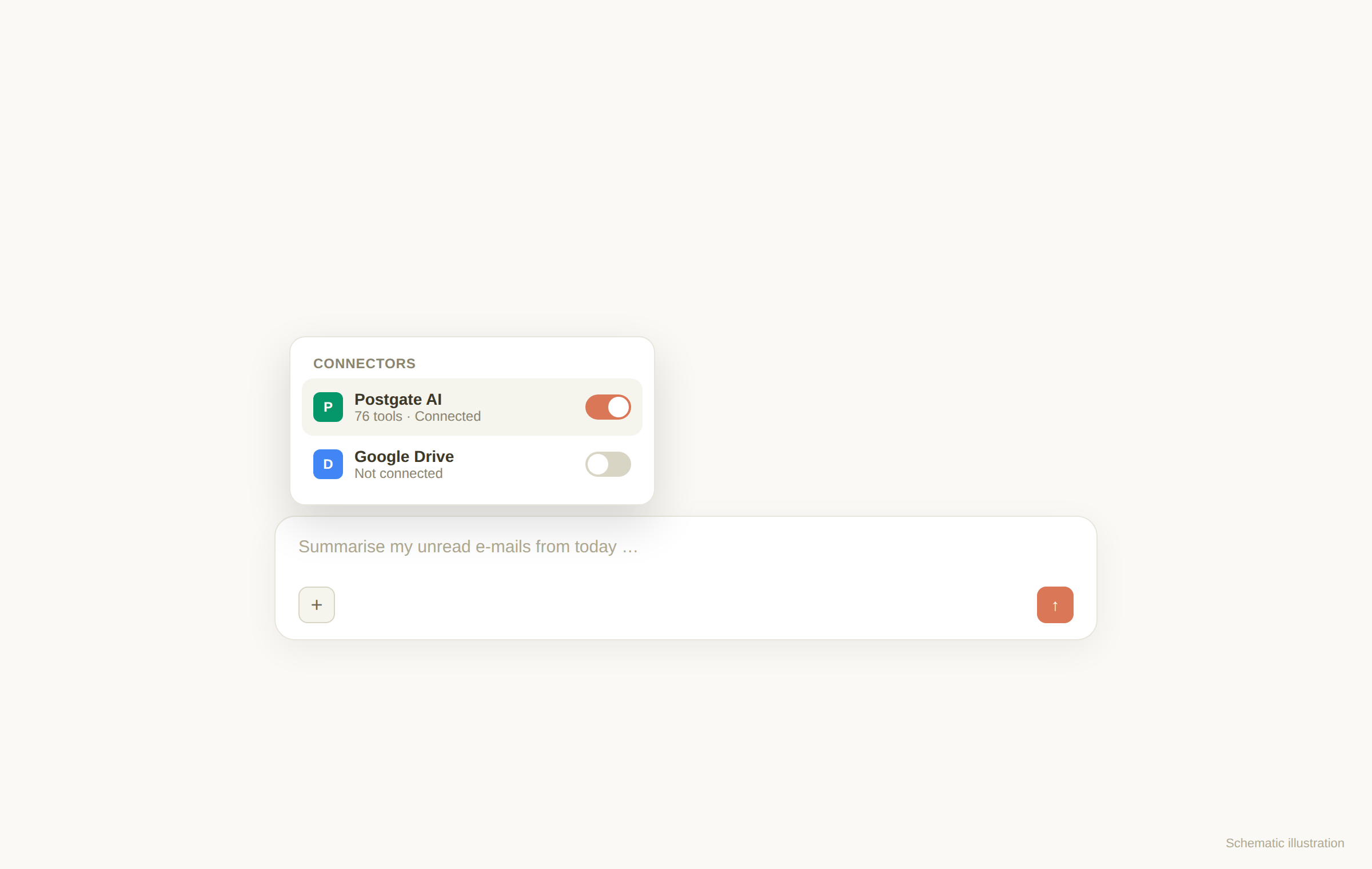
Simplified illustration, not an actual screenshot. Try it: "Summarize my unread emails from today." Before any write action (e.g., sending an email), Claude asks for your confirmation.
If something goes wrong
Connector won’t connect
Make sure the MCP address matches the one in your dashboard exactly (https, no trailing space) and that your trial hasn’t expired.
Sign-in fails
Use your portal account (not your Exchange credentials). Forgot your password? Reset it with "Forgot password?" on the portal sign-in page.
Team plan: "Add custom connector" is missing
On Team and Enterprise plans, only owners can add connectors, and they do so in the organization settings. Each member then connects with their own portal account.
Frequently asked questions
- Which Claude plan do I need?
- Custom connectors are available even on the Free plan (one custom connector). Pro and Max allow several. On Team/Enterprise, the owner manages connectors centrally.
- Can Anthropic see my emails?
- Claude only calls the tools you trigger in the chat and works strictly with your own Exchange permissions. There is no shared service account.
- Does this work in the desktop app and on mobile?
- Yes. You set up the connector once in your account, and it’s then available on claude.ai, in the desktop app, and in the mobile apps.