Roll out across your team via Microsoft Copilot: per user, desktop and mobile
Built once in Copilot Studio, with our MCP server over OAuth, and deployed org-wide: every employee reaches their own on-premises mailbox with their own credentials and their own permissions, in the Microsoft 365 Copilot app and in Teams, on desktop and mobile. One central setup, no shared account, no per-device add-in. Copilot Studio is the route for Microsoft Copilot customers; without a Copilot license, connect Postgate AI directly in Claude, ChatGPT, Gemini, or Perplexity, also per user, on desktop and mobile.
- Microsoft Copilot Studio (license / Power Platform)
- A Microsoft 365 Copilot license per user (for the Copilot channel)
- An agent in Copilot Studio
- Your personal MCP address from the portal dashboard
Per user, own permissions
Each person signs in once with their own credentials and accesses only their own mailbox, no shared account, no impersonation.
Desktop and mobile
Available everywhere Copilot runs: the Microsoft 365 Copilot app and Teams, on Windows, Mac, the web, and iOS/Android.
Set up once, roll out org-wide
One agent, built centrally in Copilot Studio, deployed by an admin to the whole team or specific groups.
Their own on-prem mailbox
Access to Exchange Server SE, 2019, and 2016 in your own data center via EWS, server-side, either fully managed in Germany or self-hosted.
Step by step
- 1
Copy your MCP address from the dashboard
Sign in to the Postgate AI portal. On the dashboard, under "Connect your AI assistant", you’ll find your personal MCP address (format: https://postgate-ai.com/mcp/your-company) with a copy button.
- 2
Add the MCP tool to your agent
Open your agent in Copilot Studio and go to the "Tools" tab. Click "Add a tool" → "New tool" → "Model Context Protocol". The onboarding wizard guides you through the connection (recommended over the manual custom connector).
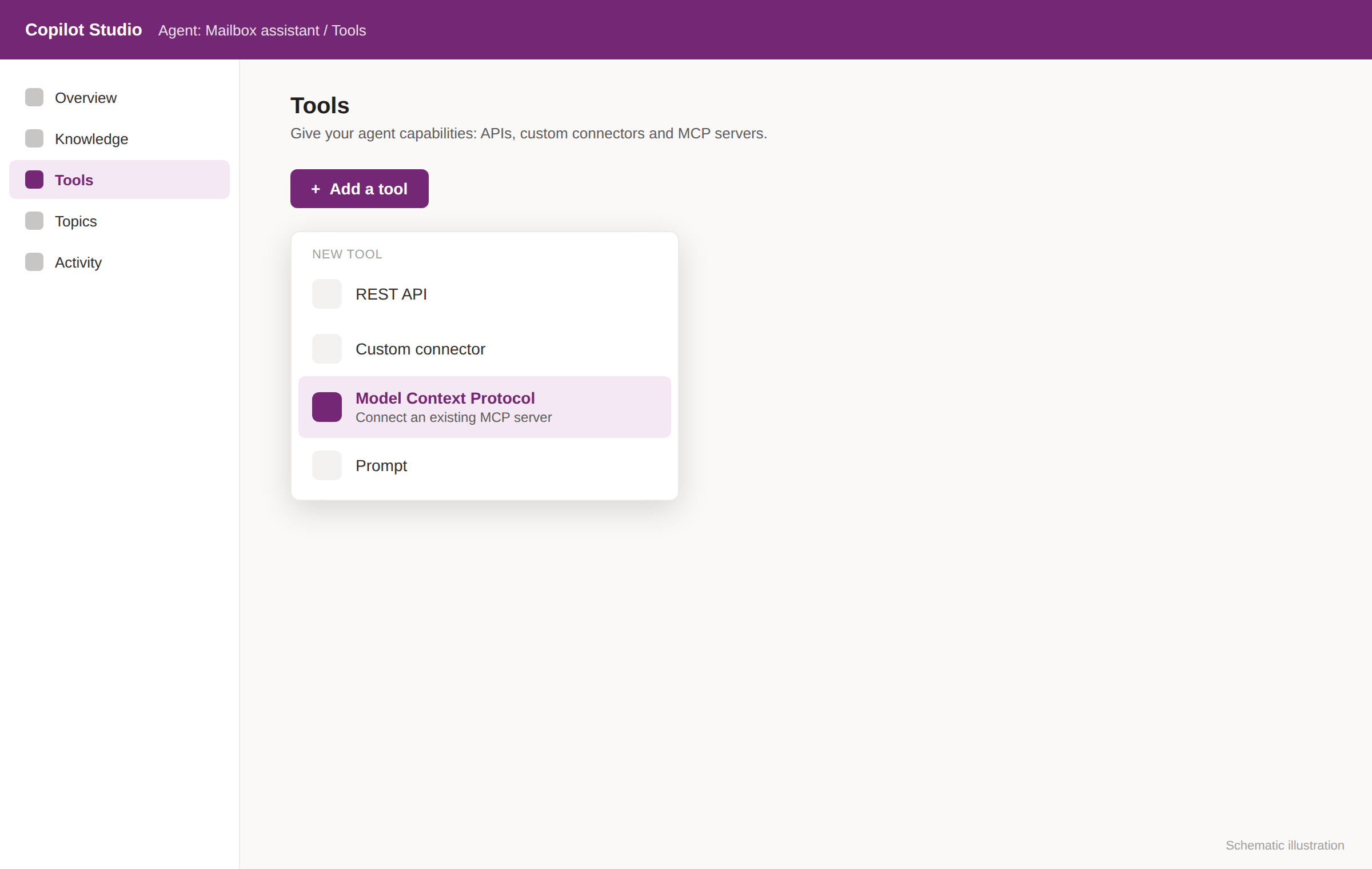
Simplified illustration, not an actual screenshot. - 3
Configure the server
Enter a server name, your MCP address as the server URL, and OAuth 2.0 as the authentication type. Important: Copilot Studio only supports the Streamable HTTP transport (SSE was deprecated in August 2025). Postgate AI supports Streamable HTTP natively.
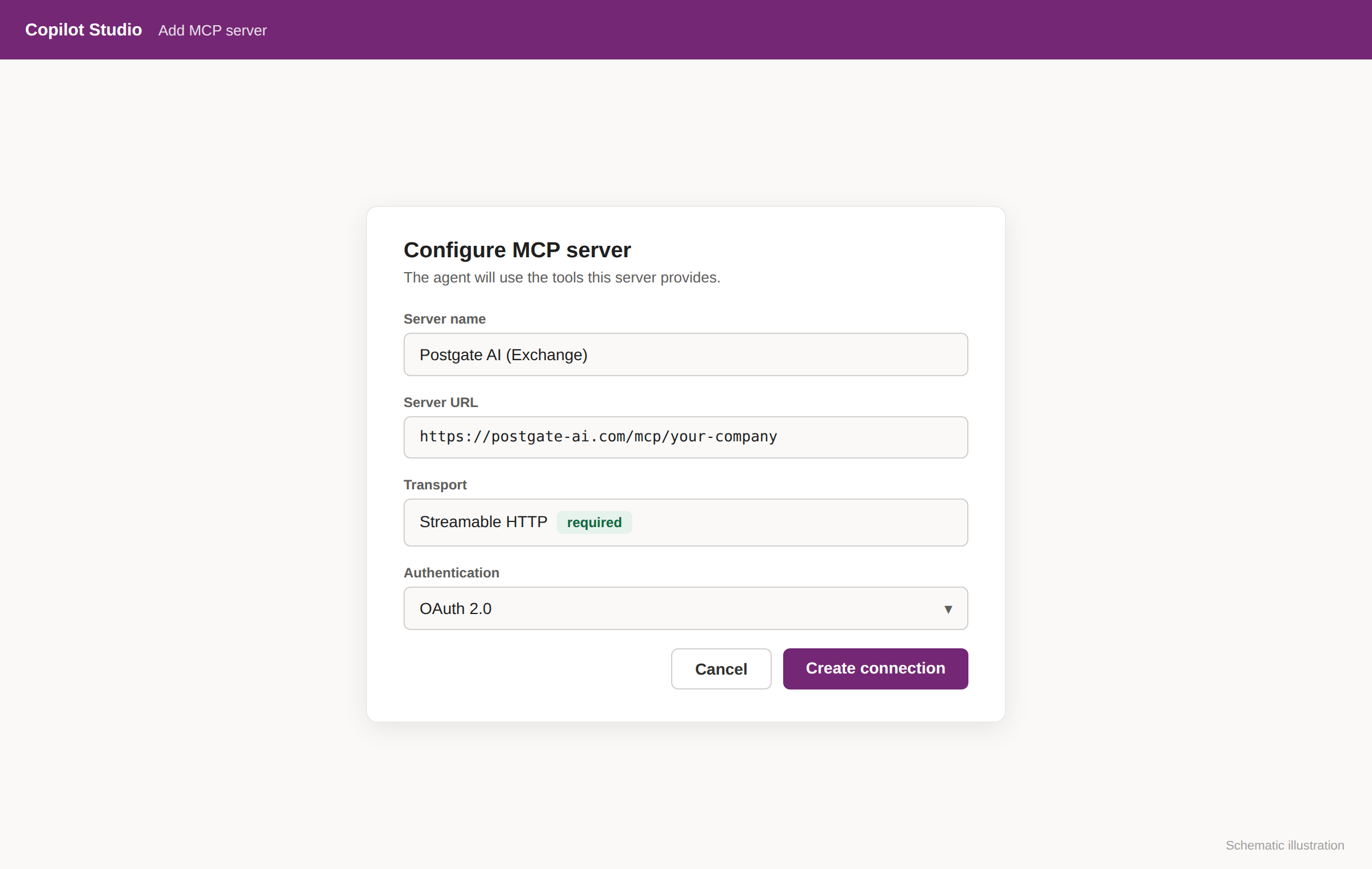
Simplified illustration, not an actual screenshot. Creating the connector manually instead of using the wizard? You can use our logo as the connector icon. Download: https://postgate-ai.com/img/setup/connector-icon.png (PNG, 180x180). Icon background color: #0b1512.
- 4
Create the connection and sign in
Create a new connection in the connection picker. The first time you connect, the Postgate AI sign-in (OAuth) opens. Sign in with your account. You can then review the tools the server exposes and turn them on or off individually.
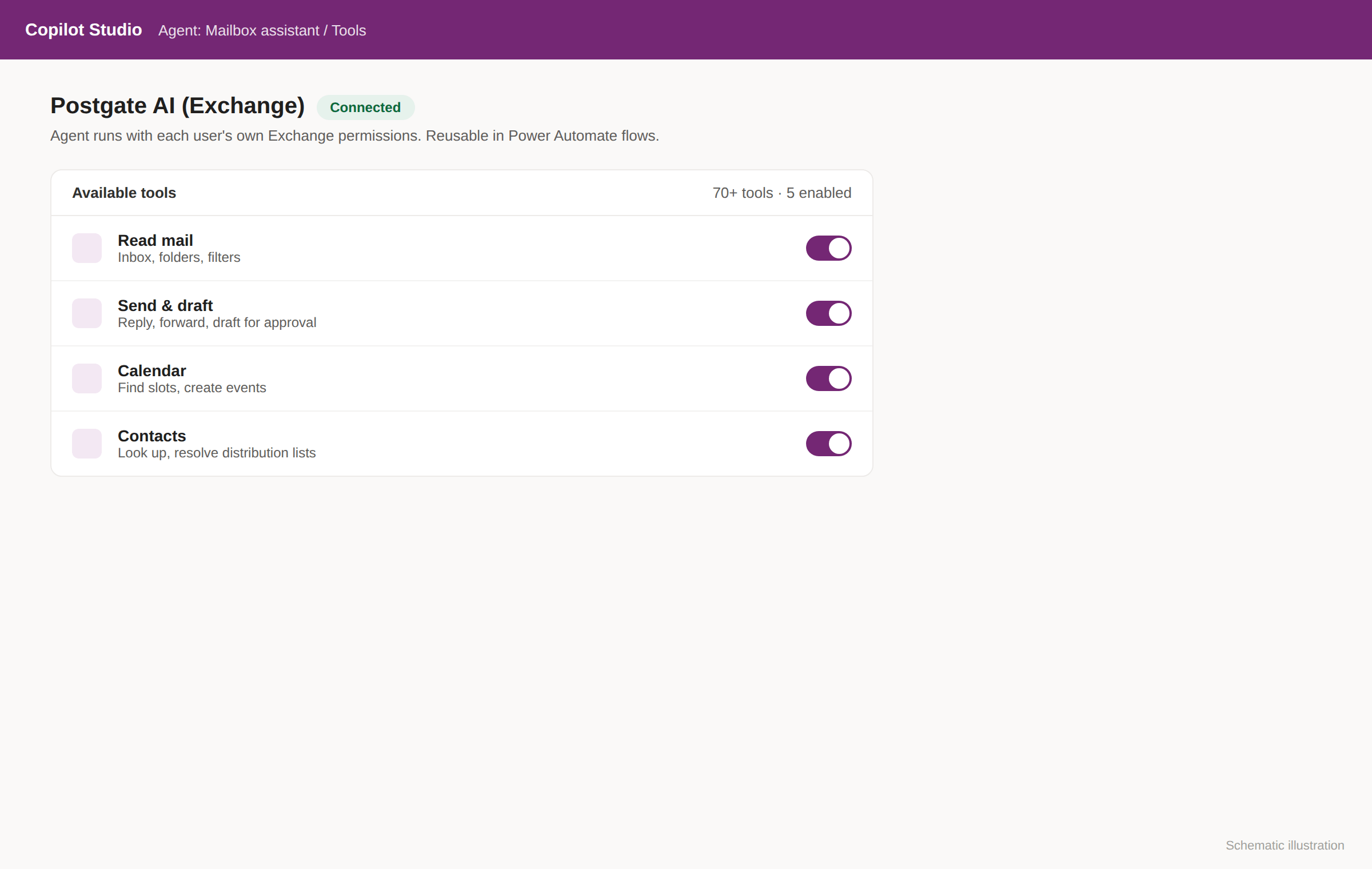
Simplified illustration, not an actual screenshot. The redirect runs through the regional consent host (e.g., europe.consent.azure-apim.net), and Postgate AI accepts the regional hosts. Access control: "Microsoft Copilot Studio" must be enabled under "Allowed AI clients" on the portal dashboard (default: on).
- 5
Publish and roll out to your team, desktop and mobile
Publish the agent and, under "Channels", add the "Teams and Microsoft 365 Copilot" channel. An admin then deploys the agent org-wide or to specific groups (Microsoft 365 admin center, "Manage agents"). Your users then talk to it right in Copilot chat, in Teams and the Microsoft 365 Copilot app, on Windows, Mac, the web, and on their phone. No Outlook panel, no add-in mobile restriction.
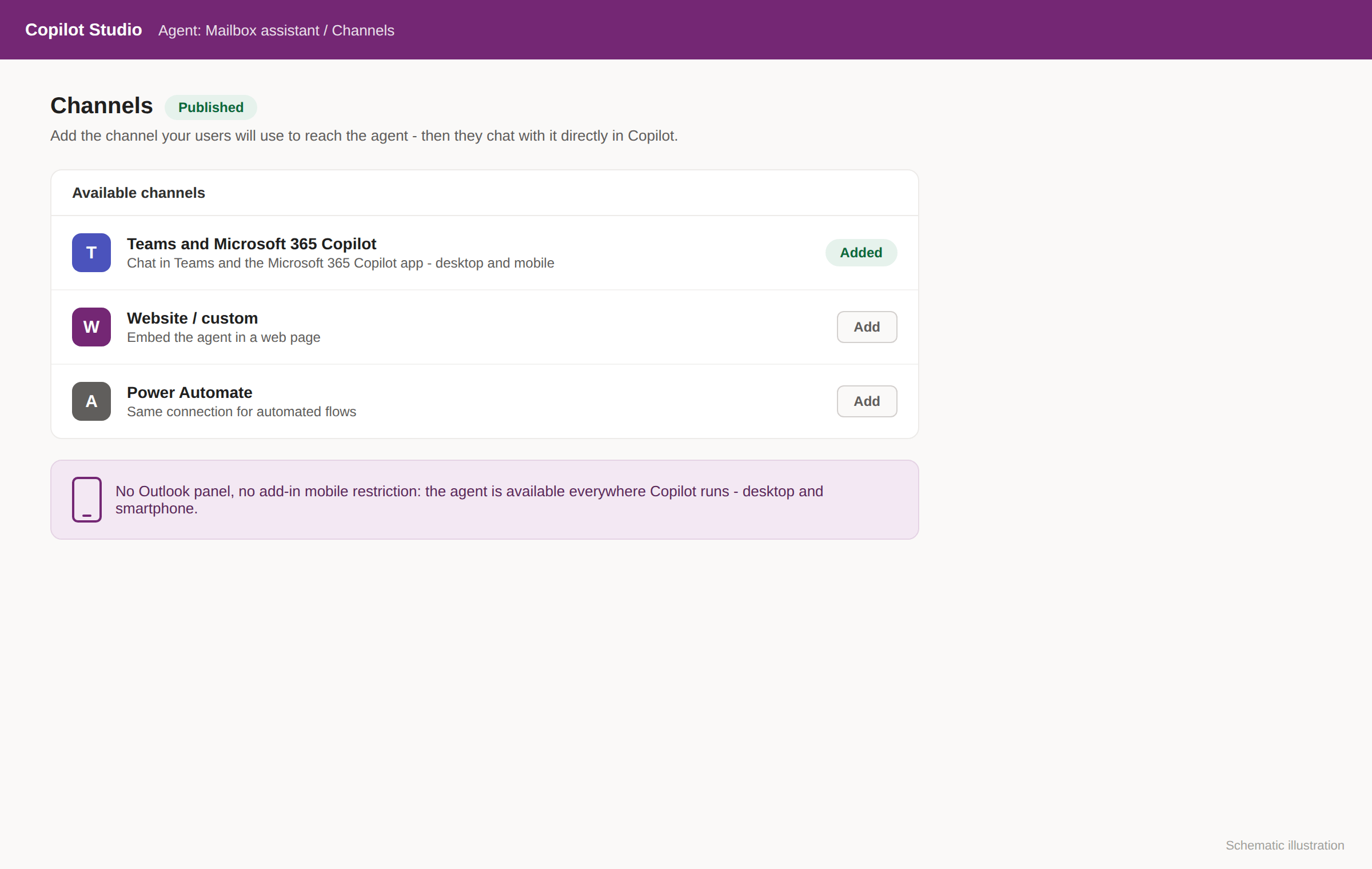
Simplified illustration, not an actual screenshot. Using the "Microsoft 365 Copilot" channel requires end users to have a Microsoft 365 Copilot license (one-time OAuth sign-in per user on first use, each with their own permissions). The Copilot Studio route is therefore an additional channel for Copilot customers. The direct route through Claude, ChatGPT, and others doesn’t need a Copilot license.
- 6
Test and automate
Test the agent in chat. It now accesses the mailbox with your own Exchange permissions.
If something goes wrong
Connection fails (400 on creation)
Check that "Microsoft Copilot Studio" is enabled in the portal dashboard. The Power Platform redirect depends on your tenant region (e.g., europe.*, not global.*), and Postgate AI allows the regional consent hosts. If errors persist, contact us with the exact redirect URI.
Occasional re-authentication
If the access token expires, the user signs in again via OAuth, and everything continues from there. The offline_access scope is set for automatic refresh.
No SSE
Since August 2025, Copilot Studio only supports Streamable HTTP. Use the MCP address as is. Postgate AI supports this transport natively.
Frequently asked questions
- Can I roll this out to all users at once?
- Yes. You build the agent once and an admin deploys it org-wide or to selected groups. Each user signs in once on first access, so they work with their own permissions on their own mailbox.
- Does this work on desktop too?
- Yes. The agent is available everywhere Microsoft Copilot runs, in the Microsoft 365 Copilot app and Teams on Windows, Mac, and the web, as well as on mobile (iOS and Android).
- Does this work on mobile?
- Yes. You use the agent inside Copilot, not as an Outlook add-in, so the mobile restrictions of classic add-ins do not apply. The agent is available everywhere the Microsoft 365 Copilot app or Teams runs, including mobile.
- Does every user sign in themselves?
- Yes, once. The first time, each user signs in via OAuth with their own credentials and then accesses their own mailbox with their own Exchange permissions. If the token expires later, they just sign in again.
- Which permissions does the agent use?
- The signed-in user's own Exchange permissions on their own mailbox. No service account, no impersonation.
- Can I automate with it?
- Yes. The same connection can be used in Power Automate flows, for example for nightly triage or automatic summaries.
- Do my users need a Copilot license?
- For the "Microsoft 365 Copilot" channel, yes, Microsoft requires it. The Copilot Studio route is an additional channel for existing Copilot customers. To work without a Copilot license, connect Postgate AI directly in Claude, ChatGPT, Gemini, or Perplexity. No Microsoft license is needed there.
- Do I need coding skills?
- No. The MCP wizard in Copilot Studio only asks for a server name, URL, and authentication type, no code and no manual connector required.
More guides
Planning a team rollout?
We help with the connection, org-wide rollout, and automation. Just send us a message.