Connect Claude to Exchange Server by Postgate AI
Claude by Anthropic supports custom MCP connectors directly on claude.ai - in the browser, the desktop app and on mobile. Setup takes about two minutes.
- Claude Free, Pro or Max
- Team/Enterprise: an owner adds the connector
- Your personal MCP address from the portal dashboard
Step by step
- 1
Copy your MCP address from the dashboard
Sign in to the Postgate AI portal. On the dashboard, under "Connect your AI assistant", you find your personal MCP address (format https://postfach-ki.de/mcp/your-company) with a copy button.
- 2
Open the connectors settings
On claude.ai click your name in the bottom left, then "Settings" and choose "Connectors" from the menu.
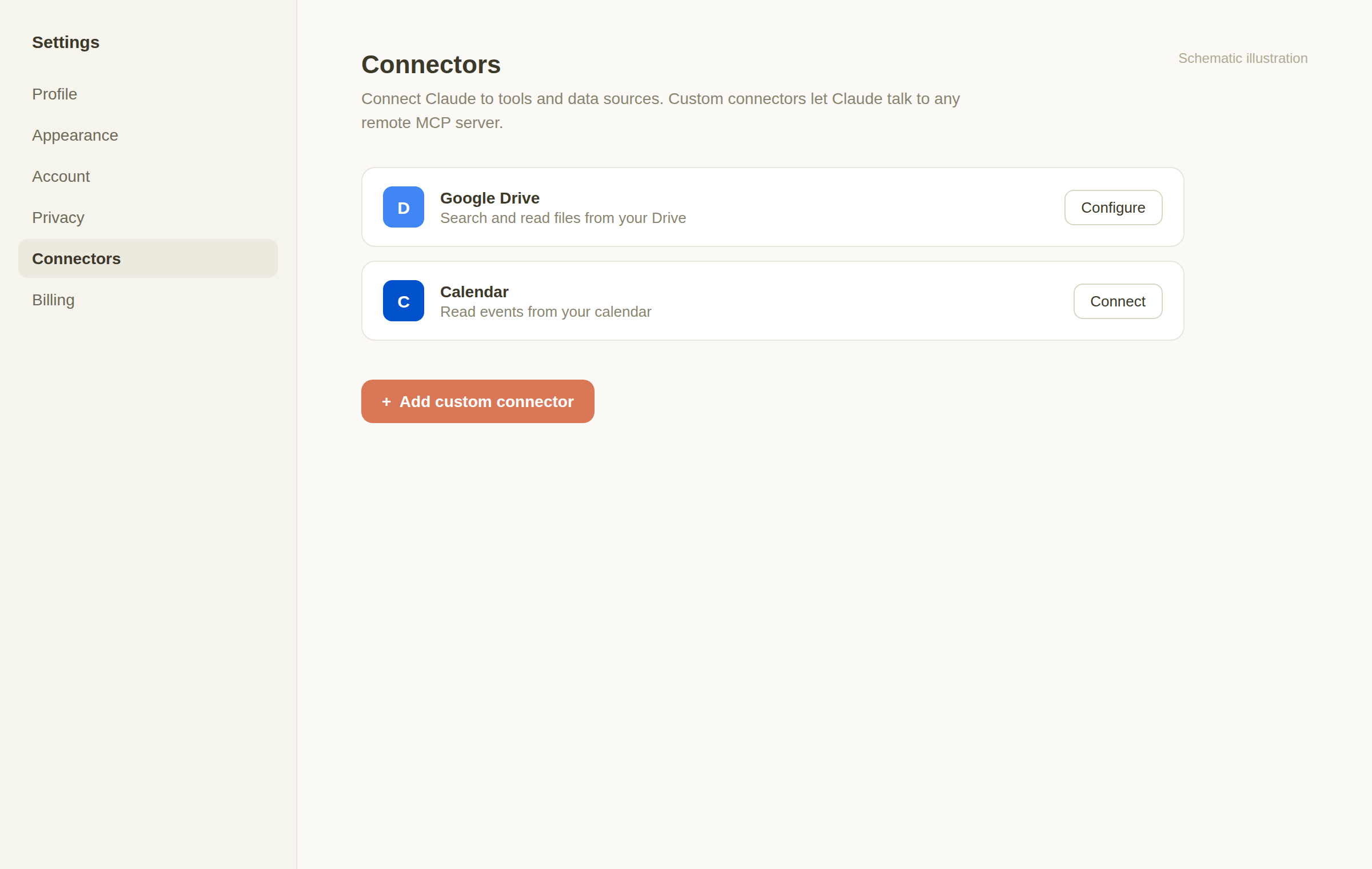
Schematic illustration, not an original screenshot. - 3
Fill in "Add custom connector"
Click "Add custom connector". Enter a name such as "Postgate AI" and paste your MCP address as the remote MCP server URL. Leave the advanced settings (OAuth client ID/secret) empty - Postgate AI uses dynamic client registration. Confirm with "Add".
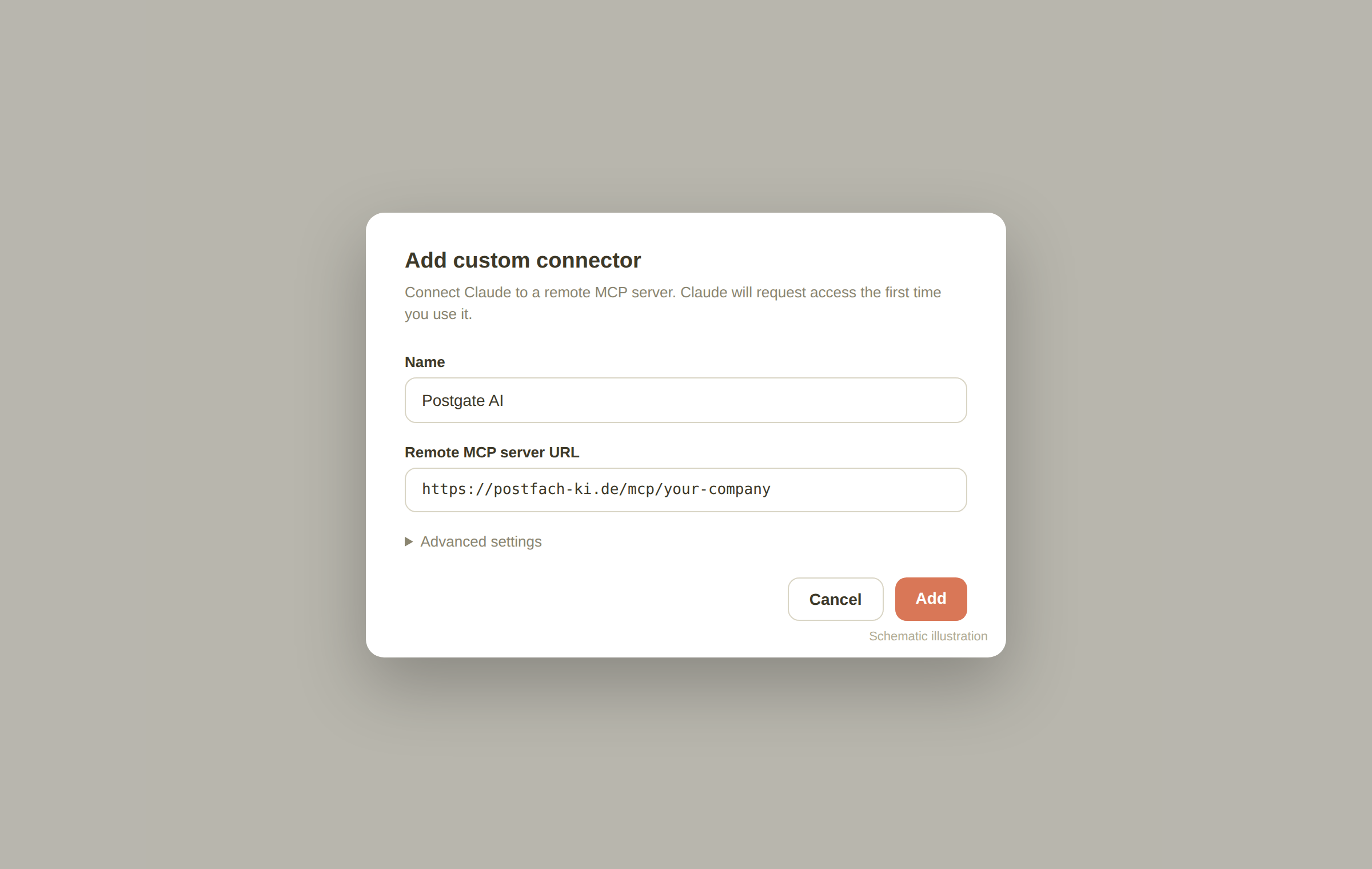
Schematic illustration, not an original screenshot. - 4
Connect and sign in
Click "Connect" on the new connector. Claude redirects you to the Postgate AI sign-in: use your portal account (e-mail + password or Microsoft). Then approve access once.
- 5
Enable the connector in a chat
In a chat click the "+" next to the input field and enable the connector. Claude now sees more than 70 tools for mail, calendar, contacts and tasks - always limited to your own Exchange permissions.
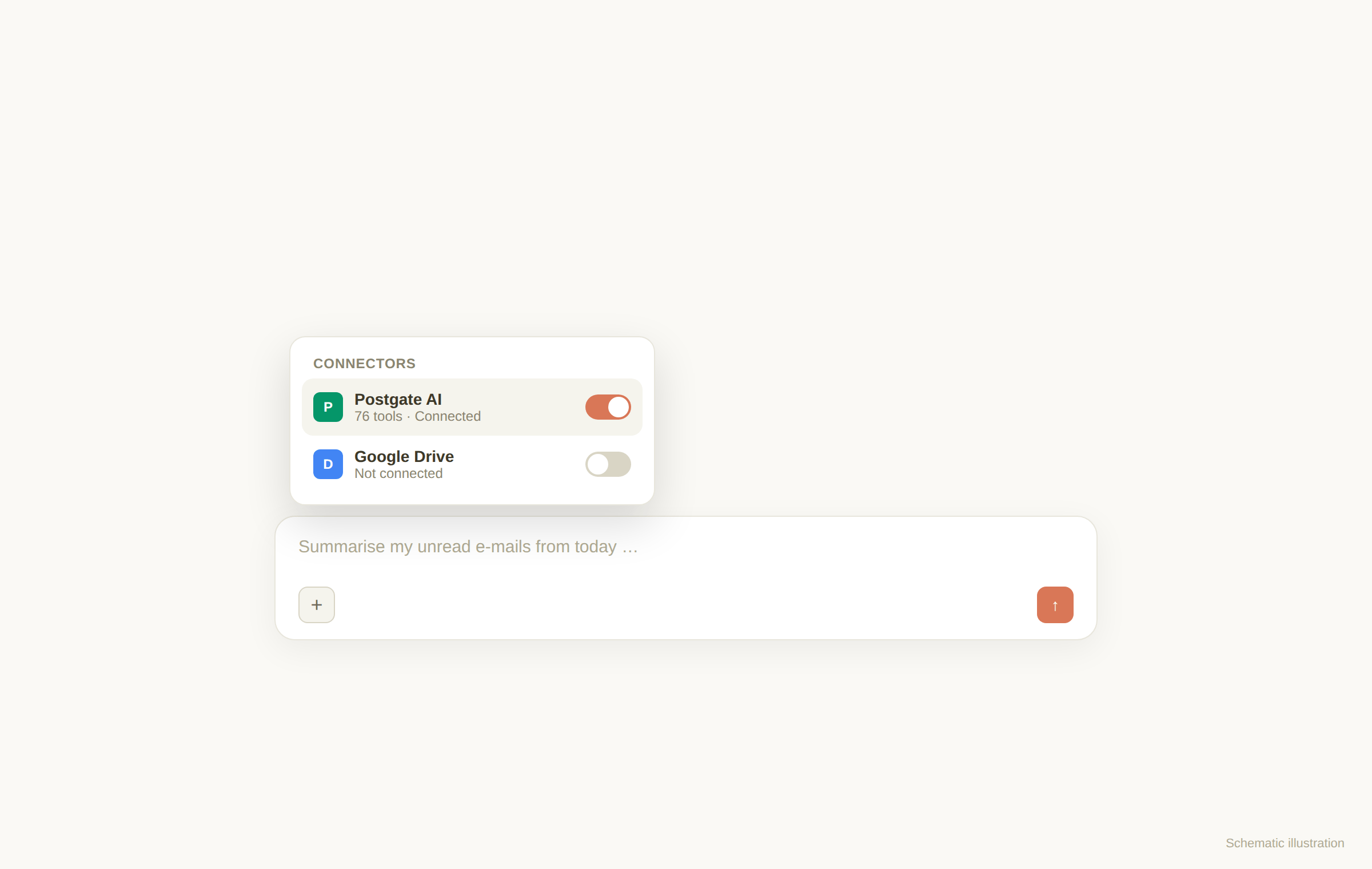
Schematic illustration, not an original screenshot. First test: "Summarise my unread e-mails from today." Before write actions (e.g. sending mail) Claude asks for your confirmation.
If something goes wrong
Connector does not connect
Check that the MCP address exactly matches the one from your dashboard (https, no trailing space). Your trial must not have expired.
Sign-in fails
Use your portal account (not your Exchange credentials). Forgot the password? Reset it via "Forgot password?" on the portal login.
Team plan: no "Add custom connector" visible
On Team and Enterprise plans only owners add connectors under organisation settings. Each member then connects individually with their own portal account.
Frequently asked questions
- Which Claude plan do I need?
- Custom connectors work from the Free plan (one custom connector). Pro and Max allow several. On Team/Enterprise the owner manages connectors centrally.
- Can Anthropic see my e-mails?
- Claude only calls the tools you trigger in the chat and works strictly with your own Exchange permissions. There is no shared service account.
- Does this work in the desktop app and on mobile?
- Yes. The connector is set up once in your account and is then available on claude.ai, in the desktop app and in the mobile apps.