Connect ChatGPT to Exchange Server by Postgate AI
ChatGPT supports custom MCP connectors via developer mode (beta). The name sounds more technical than it is: enable it once, create the connector, done.
- ChatGPT Plus, Pro, Team, Enterprise or Edu (not Free)
- Team/Enterprise: an admin must enable developer mode
- Your personal MCP address from the portal dashboard
Step by step
- 1
Copy your MCP address from the dashboard
Sign in to the Postgate AI portal. On the dashboard, under "Connect your AI assistant", you find your personal MCP address (format https://postfach-ki.de/mcp/your-company) with a copy button.
- 2
Enable developer mode
On chatgpt.com click your profile in the bottom left, open "Settings" and switch to "Connectors". Under "Advanced settings" enable the "Developer mode" (beta) toggle.
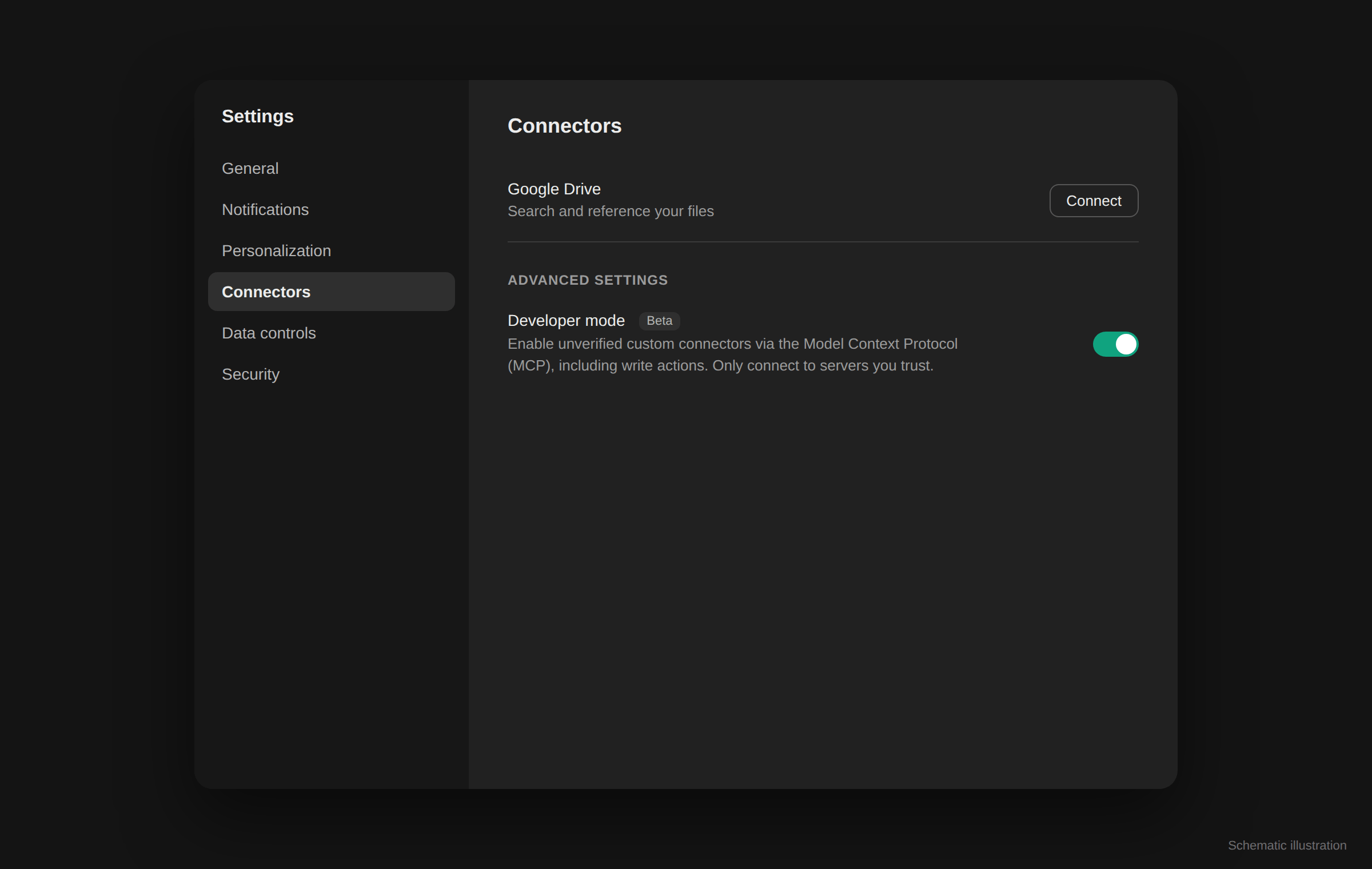
Schematic illustration, not an original screenshot. In Team, Enterprise and Edu workspaces an admin must first allow developer mode under workspace settings (Connected Data / Permissions).
- 3
Create the connector
In the connectors section click "Create" or "Add custom connector". Enter a name (e.g. "Postgate AI") and a short description, paste your MCP address as the MCP server URL, choose "OAuth" as authentication and confirm "I trust this application". Save with "Create".
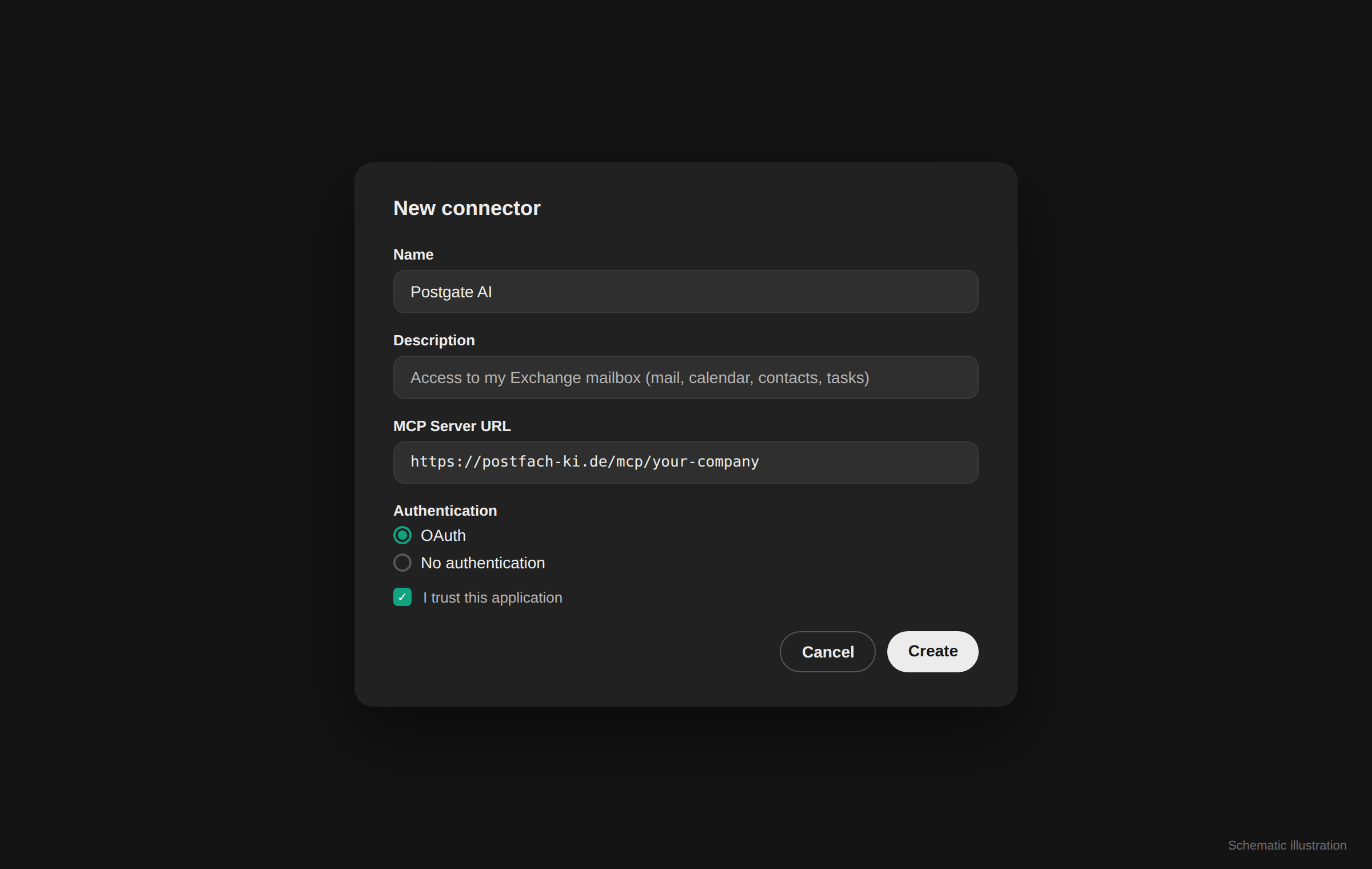
Schematic illustration, not an original screenshot. - 4
Sign in
ChatGPT redirects you to the Postgate AI sign-in. Use your portal account (e-mail + password or Microsoft) and approve access.
- 5
Use it in a chat and confirm write actions
In a chat, enable developer mode or the connector for the conversation via the "+" menu. ChatGPT shows every tool call; before write actions such as "send mail" a confirmation dialog appears - you always stay in control.
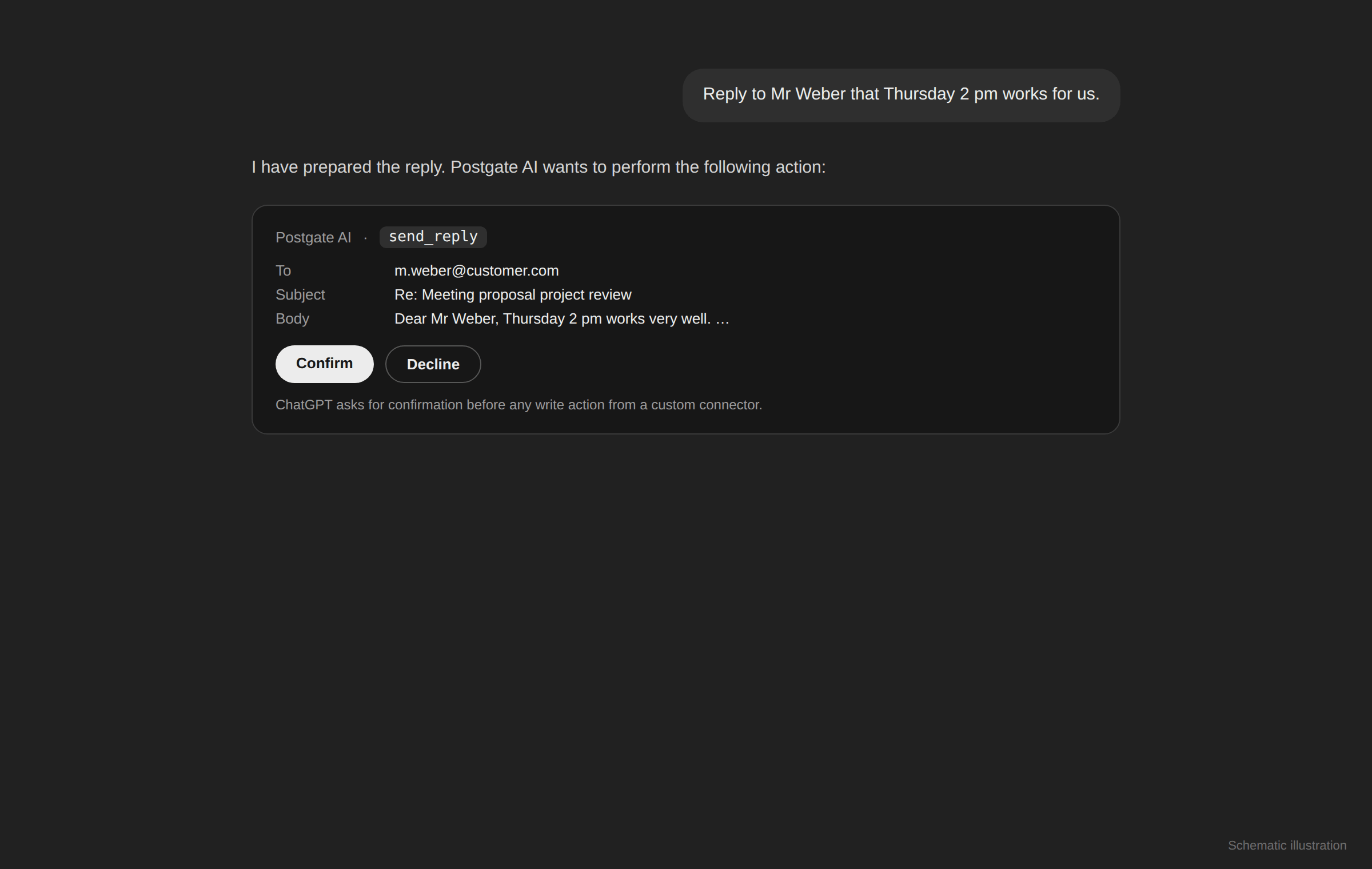
Schematic illustration, not an original screenshot.
If something goes wrong
No developer mode visible
Free accounts do not have developer mode. In workspaces (Team/Enterprise/Edu) an admin must first enable it under workspace settings.
ChatGPT does not use the connector
Check that the connector is enabled for the current conversation via the "+" menu and phrase the task concretely (e.g. "Search my mailbox for …").
Connection fails
Copy the MCP address exactly from the dashboard (https, no trailing space). Authentication must be set to OAuth.
Frequently asked questions
- Why is it called "developer mode"?
- OpenAI currently groups custom MCP connectors under this beta toggle. The setup itself is a simple form - no programming knowledge required.
- Can ChatGPT send mail without asking?
- No. Before every write action from a custom connector ChatGPT shows the planned action with all details and waits for your confirmation.
- Can an admin roll the connector out to everyone?
- Yes. In Team and Enterprise workspaces an admin can publish the connector centrally; each member then only signs in with their own portal account.